How to Set Up Facebook Ads for Your E-commerce Store
Before you can start running Facebook ads for your e-commerce store, you need to complete a few important setup steps. Facebook (now Meta) requires every advertiser to properly configure their Meta Business Suite, Facebook Page, Ads account, and payment details before ads can go live.
Here’s a simple step-by-step breakdown.
1. Create Your Meta Business Suite
Meta Business Suite is the central hub where you manage Facebook pages, Instagram accounts, and ad accounts in one place.
To get started:
- Visit Meta Business Suite and log in using your personal Facebook account
- Create a new business by entering your business name
- Once completed, you’ll gain access to the Business Suite dashboard
Meta Business Suite allows you to manage multiple ad accounts and stores, making it ideal if you plan to scale or run more than one e-commerce business.
2. Create a Facebook Page for Your Store
You must have a Facebook Page to run ads.
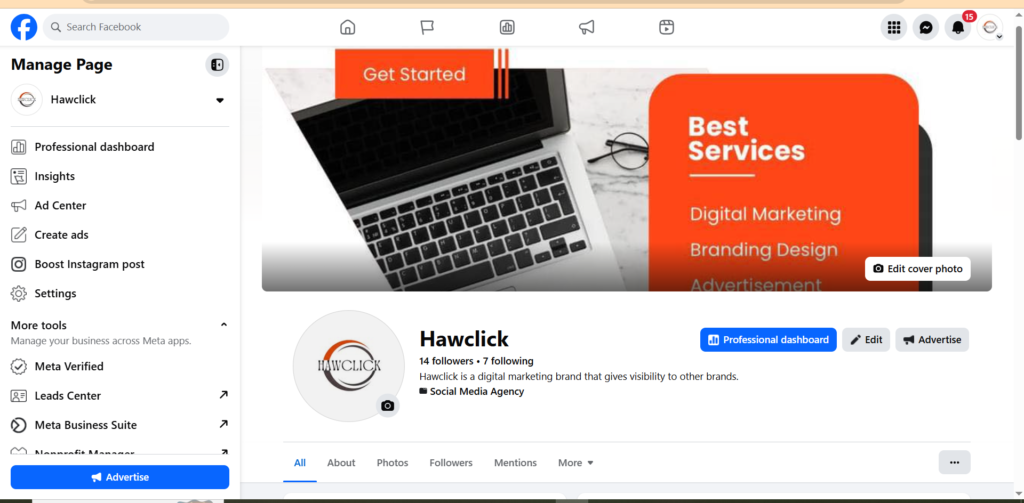
Inside Meta Business Suite:
- Go to Settings → Pages
- Click Add → Create a new Facebook Page
- Name the page after your store name
Your Facebook Page name and logo are the two most important trust signals shown in your ads. Make sure:
- The page name matches your store name
- You upload a clear, professional logo as your profile picture
You don’t need many posts or a banner image at this stage — credibility matters more than activity when starting out.
3. Create a Facebook Ads Account
Next, you’ll need an ad account to run your campaigns.
- Go to Settings → Ad Accounts
- Click Add → Create a new ad account
When creating your ad account, pay close attention to:
- Time zone – set it to your local time
- Currency – match the currency used in your e-commerce store
Matching your store and ad account currency makes tracking costs, revenue, and profit much easier.
4. Add Business Information
Facebook requires advertisers to provide real business details.
In Meta Business Suite:
- Go to Business Portfolio Info
- Add your legal business name and address
If you don’t have a registered office, your personal address can be used. This step is mandatory to run ads.
5. Secure Your Account with Two-Factor Authentication
Ad account hacks are common, especially when multiple people have access.
Enable two-factor authentication (2FA) for everyone with access to your Business Suite to protect:
- Your ad spend
- Your Facebook Page
- Your business assets
6. Set Up Payment Method
Finally, add a payment method so Facebook can bill your ads.
- Go to Billing & Payments → Payment Methods
- Add a business payment method
- Ensure the currency and location match your ad account
It’s recommended to separate personal and business expenses by using a dedicated business card or account. This keeps your finances clean as your store grows.
7. Open Ads Manager
Once everything is connected:
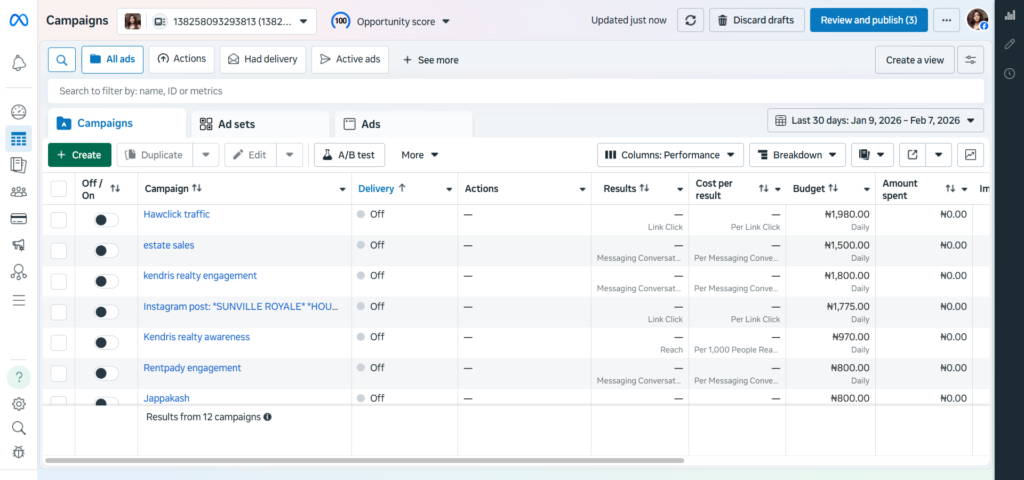
- Go to Ad Accounts
- Select your ad account
- Click Open in Ads Manager
This is where you’ll create, manage, and optimize your Facebook ads.
Facebook Advertising Guide for E-commerce
How to Create a Facebook Ad Campaign for E-commerce Sales
Once your Meta Business Suite and Ads Manager are fully set up, the next step is creating your first Facebook ad campaign to drive traffic and sales to your online store.
Here’s how to set it up the right way.
1. Create a New Campaign in Ads Manager
Inside your Facebook Ads Manager:
- Click Create to start a new campaign
- If Facebook asks you to verify your email, payment method, or page, complete that first before continuing
Verification is common for new ad accounts and must be resolved before ads can run.
2. Choose the Right Campaign Objective
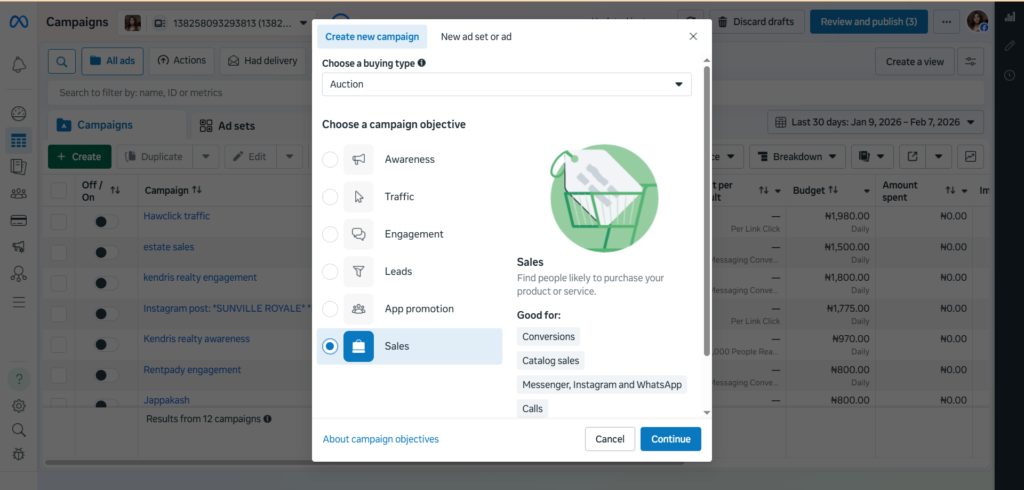
For e-commerce, there is only one objective that matters:
👉 Sales
Your goal is not traffic, likes, or engagement — it’s profitable conversions. Always select Sales and continue.
3. Manual Sales Campaign vs Advantage+ Shopping
Facebook offers two sales options:
- Advantage+ Shopping Campaign
- Manual Sales Campaign
While Advantage+ is more automated, it removes key controls needed for proper testing. For e-commerce stores that want to test multiple creatives, headlines, and ad copies, Manual Sales Campaigns are the better choice.
You’ll still benefit from Facebook’s algorithm while keeping control over testing and scaling. Facebook Advertising Guide for E-commerce
4. Name Your Campaign Properly
5. Special Ad Categories (Most Stores Skip This)
Special ad categories apply only to regulated industries like:
- Credit
- Employment
- Housing
- Political or social issues
Most e-commerce stores do not need to select anything here.
6. Buying Type: Auction (Always)
Leave the buying type set to Auction.
Auction bidding allows Facebook to compete for the highest-converting audience rather than just the largest audience size, which leads to better performance and scalability.
7. Skip Product Catalogs (For Now)
Although Facebook allows you to connect your product catalog, it’s better to skip this at the beginning.
Why?
- Custom creatives outperform basic product images
- You maintain full control over messaging
- It allows proper creative testing and scaling
Using custom ad templates gives you better flexibility and stronger conversion potential.
8. Skip Basic A/B Testing
Facebook’s built-in A/B testing is slow and limited.
Instead of testing one element at a time, a better strategy is allowing Facebook’s algorithm to test multiple variations (creatives, headlines, text) simultaneously and optimize automatically based on performance.
This approach is faster and more effective. (Facebook Advertising Guide for E-commerce)
9. Enable Advantage Campaign Budget (CBO)
Turn on Advantage Campaign Budget (also known as CBO).
This allows Facebook to:
- Distribute your budget across ad sets
- Prioritize the best-performing ads
- Optimize for maximum conversions
Facebook’s algorithm has access to billions of data points — it will make better decisions than manual budget splitting.
10. Set Your Budget Correctly
Start with a daily budget, not lifetime.
Important note:
- Facebook calculates daily budgets on a weekly basis
- A $10/day budget may spend more on some days and less on others
- It will not exceed your weekly limit
Recommended starting budget:
- Minimum: $10/day
- Ideal for testing: $15–$30/day if possible
11. Choose the Right Bid Strategy
Always select Highest Volume.
Avoid limiting Facebook with cost caps or ROAS goals at the beginning. The algorithm needs data to learn. You may pay more initially, but costs decrease as performance improves.
Highest volume gives you:
- Faster learning
- Better optimization
- Easier scaling
How to Install the Facebook Pixel on Your Store
The Facebook Pixel tracks purchases from your ads and helps Facebook identify buyers most likely to convert. It is essential for measuring results, optimizing performance, and scaling profitably.
Why the Facebook Pixel Matters
- Tracks sales generated directly from ads
- Helps calculate ad spend vs profit
- Trains Facebook’s algorithm to find better buyers
- Improves conversion rates over time
Pixel Setup (Shopify)
- Go to Ads Manager → Ad Set Level
- Create a New Pixel and name it
- Choose Meta Pixel + Conversions API
- Select Shopify as your partner
- Install the Facebook & Instagram app in Shopify
- Set Data Sharing to Maximum
- Add your pixel and sync your product catalog
- Verify the connection (disable ad blockers)
Enable Cookie Consent
- Go to Shopify → Settings → Customer Privacy
- Activate the Cookie Banner
- This is required for GDPR and data compliance
Track the Right Event
- Select Purchase as your main conversion event
- Ignore add-to-cart and checkout events at this stage
Once completed, your pixel is fully installed, compliant, and ready to optimize your ads for conversions and scaling.(Facebook Advertising Guide for E-commerce)
How to Set Up Facebook Ad Sets for E-commerce (Winners Strategy)
After creating your Facebook sales campaign, the next step is setting up your ad sets correctly. This is where targeting, optimization, and scaling really happen.
Understanding this part properly can make or break your Facebook advertising results.
Understanding Facebook’s Ad Structure
Facebook ads follow a simple hierarchy:
- Campaign – Your main goal (Sales)
- Ad Set – Targeting, budget distribution, optimization
- Ads – Creatives (images, videos, headlines, text)
For most e-commerce stores, you only need one sales campaign. Everything happens inside that campaign.
Why You Need a “Winners” Ad Set
An ad set is essentially a container for multiple ads.
In this strategy, you’ll use:
- One Winners ad set – where all profitable ads live
- One Testing (DCT) ad set – where new creatives are tested
The idea is simple:
- Test new creatives in the testing ad set
- Move profitable ads into the Winners ad set
- Scale the budget using ads that are already making money
This allows you to grow profits while continuously testing new ads.
Name Your Ad Set Properly
Name this ad set “Winners” so it’s easy to identify later when scaling.
Clear naming helps when analyzing performance and managing budgets.
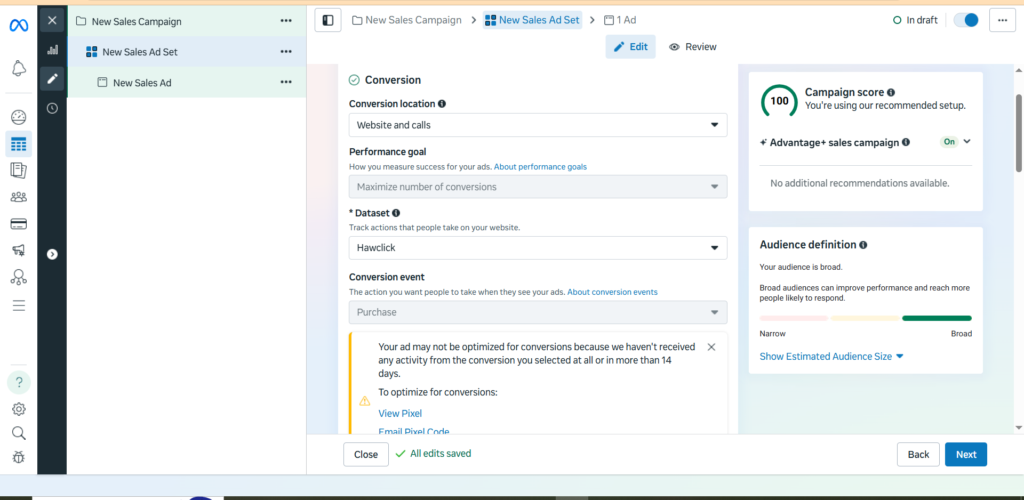
Conversion Settings (This Is Critical)
Set the following options carefully:
- Conversion location: Website
- Optimization goal: Maximize number of conversions
- Conversion event: Purchase
Do not optimize for:
- Link clicks
- Landing page views
- Add to cart
Facebook should be trained to find people who buy, not people who just click. (Facebook Advertising Guide for E-commerce)
Facebook Pixel & Conversion Tracking
Select your Facebook Pixel and ensure the conversion event is set to Purchase.
If your pixel shows as inactive or red at first, don’t panic. Once your Shopify store and Meta Pixel are properly connected, it will activate automatically as data starts flowing.
Don’t Set a Cost Per Result Goal
Avoid limiting Facebook’s algorithm with cost caps early on.
Facebook needs flexibility to:
- Learn your audience
- Optimize delivery
- Improve performance over time
Setting a cost limit too early slows learning and reduces scalability.
Attribution Settings (Leave Default)
Facebook uses attribution to decide which sales came from your ads.
Default settings:
- 7-day click
- 1-day view
This means a purchase counts if someone buys within 7 days of clicking an ad or within 1 day of viewing it. These defaults work well for most e-commerce stores.
Dynamic Creative (Why It’s Off for Winners)
Dynamic Creative allows Facebook to mix and match:
- Images or videos
- Headlines
- Primary text
Facebook tests combinations automatically to find top performers.
However, for the Winners ad set, Dynamic Creative should be turned OFF. This ad set is only for ads that are already proven profitable. Dynamic Creative is better used in testing campaigns.
Budget & Scheduling
Since the budget is set at the campaign level:
- Do not set a separate budget at the ad set level
- Do not set start or end dates
- Do not add spending limits
Let Facebook distribute budget automatically to the best-performing ads.
Location Targeting (Keep It Simple)
For new e-commerce stores, start with:
- United States only
The U.S. market has:
- High buying intent
- Strong purchasing power
- Faster data collection
You can expand to other English-speaking countries later.
Advantage+ Audience (Go Broad)
Instead of manual interest targeting, use Advantage+ Audience.
Facebook’s AI now performs better than manual targeting because it uses:
- Behavioral data
- Purchase history
- Engagement patterns
Broad targeting allows Facebook to find the right buyers more efficiently. (Facebook Advertising Guide for E-commerce)
Automatic Placements (Always On)
Leave placements set to Advantage+ (Automatic Placements).
Manual placement selection often:
- Increases ad costs
- Reduces reach
- Slows optimization
Facebook knows where your ads convert best — let it decide.
Dynamic Creative Testing (DCT) Ad Set for Facebook E-commerce Ads
Once your Winners ad set is set up, the next step is creating a Dynamic Creative Testing (DCT) ad set. This is where all testing happens and where your future winning ads come from.
DCT stands for Dynamic Creative Testing, and it’s one of the most effective ways to find high-performing Facebook ad creatives.
Winners vs DCT Ad Sets (How the Strategy Works)
In this strategy, you only need two ad sets:
- Winners Ad Set
Holds only profitable ads that are already making sales. - DCT Ad Set
Used strictly for testing new creatives, headlines, and ad copy.
When Facebook finds a winning combination inside the DCT ad set, you move that exact ad — unchanged — into the Winners ad set.
This creates a clean system where:
- Winners generate profit
- Testing feeds new winners
- Profits fund more testing and scaling
How to Create the DCT Ad Set
Instead of creating everything from scratch:
- Duplicate your existing Winners ad set
- Keep it under the same sales campaign
- Rename the duplicated ad set to reflect testing
Example naming format:
DCT 1 – Product Name
Clear naming helps track which products and creatives are being tested.
Enable Dynamic Creative Testing
This is the most important difference between the two ad sets.
- Turn Dynamic Creative ON for the DCT ad set
- Keep Dynamic Creative OFF for the Winners ad set
Dynamic Creative allows Facebook to automatically mix and match:
- Images or videos
- Headlines
- Primary text
- Descriptions
Facebook tests multiple combinations and identifies which versions convert best.
Once a creative proves profitable, it should be moved to the Winners ad set exactly as it is — no edits.
Why You Never Edit Winning Ads
If an ad is already profitable:
- Do not tweak headlines
- Do not change images
- Do not adjust copy
Even small changes can reset performance. Winning ads should compete against new DCT ads, not against modified versions of themselves.
Facebook will naturally allocate more budget to whichever ads perform better.
Creating Ads Inside the DCT Ad Set
Inside the DCT ad set:
- Click Create Ad
- Give the ad a simple name related to the product being tested
The name itself isn’t critical — clarity is.
Ad Identity Settings
- Select your Facebook Page (required)
- Connect your Instagram account if available
If you don’t have an Instagram account yet, Facebook will still deliver ads to Instagram using your Facebook Page identity.
Use Manual Upload (Not Catalog Ads)
For creative testing:
- Select Manual Upload
- Do not use the product catalog
Catalog ads limit creative control. Custom-designed creatives consistently outperform basic product images, especially during testing.
Choose Single Image or Video Ads
Use Single Image or Video ads when testing.
This allows:
- Clear performance comparison
- Better creative control
- Easier identification of winning assets
Facebook may still automatically display carousel or collection formats if it sees higher conversion potential. (Facebook Advertising Guide for E-commerce)
Allow Multi-Advertiser Placements
Leave Multi-advertiser ads enabled.
More placements = more opportunities for Facebook’s algorithm to find buyers. Limiting placements usually increases costs and slows results.
The Two Keys to Facebook Ads Success
There are only two things that truly determine success with Facebook ads:
- A strong offer (great product, pricing, and value)
- High-quality creatives (images, videos, headlines, copy)
The DCT ad set exists solely to find those winning creatives.
Setting Up Ad Creatives for Dynamic Creative Testing (DCT)
To find a winning and profitable Facebook ad, you need to test three different ad creatives using Dynamic Creative Testing (DCT). This allows Facebook’s algorithm to automatically identify which creative performs best.
Instead of guessing which ad will work, you provide multiple options and let Facebook optimize for conversions.
Recommended Ad Creative Types to Test
Here are proven creative formats that work well for e-commerce ads:
- Testimonial Ad
Uses customer reviews, quotes, and star ratings to build trust. This is often one of the highest-converting ad types. - Features Highlight Ad
Clearly showcases key product features such as durability, ease of use, or unique functionality. - Benefits Overlay Ad
Focuses on how the product improves the customer’s experience using clean, simple visuals.
Other creative styles you can test later include:
- Us vs Them (Comparison Ads)
- Before and After Ads
- Problem and Solution Ads
These formats work best for products customers already understand and are considering upgrading.
Uploading Creatives for Facebook DCT
- Go to your ad and click Select Images
- Upload exactly three creatives
- Review the ad previews generated by Facebook
- Enable Optimize Creative for Each Person to allow Facebook to personalize ad delivery based on user behavior
If Facebook only allows one image to be uploaded, toggle Dynamic Creative OFF and ON at the ad set level. This is a common Facebook system bug.
How to Write Primary Text and Headlines for Facebook Ads
Successful Facebook ads rely on three key elements: creatives, primary text, and headlines. After creating your visuals, the next step is writing compelling ad copy that captures attention and drives conversions.
Understanding Primary Text and Headlines
- Primary Text appears above your ad image or video. It explains the product and encourages users to take action. It is usually the second thing users notice.
- Headline appears below the creative and reinforces your main message or offer. It is typically the third element users see.
Since Facebook uses multiple placements, these elements help improve visibility and engagement across different devices and audiences. (Facebook Advertising Guide for E-commerce)
Creating High-Converting Ad Copy
To improve performance, create:
- Two Primary Text Variations
- Two Headline Variations
This allows Facebook’s algorithm to test combinations and identify which messaging drives the most conversions.
Best Practices for Writing Facebook Ad Copy
- Keep headlines under 40 characters
- Keep primary text under 125 characters
- Highlight product benefits clearly
- Include a strong call-to-action such as Shop Now, Order Today, or Try It Now
- Focus on solving customer problems or showcasing product value
Using Multiple Copy Variations for Testing
When you upload multiple creatives along with different headlines and primary texts, Facebook automatically mixes and matches them. This helps determine which combination performs best based on engagement and conversion data.
After running your ad for about one week, review performance metrics to identify winning combinations. You can then scale the best-performing ads and improve future campaigns.
Final Ad Setup Tips
- Avoid adding ad descriptions, as they rarely improve performance
- Always link your ad to the specific product page, not your homepage
- Use the Shop Now call-to-action for e-commerce campaigns
- Allow time for Facebook’s review and data collection before making changes
Key Facebook Ad Metrics to Track for E-commerce Success
To properly evaluate Facebook ad performance, you must understand what to track and when to stop or scale an ad.
How Long Should You Run an Ad?
- Run ads for 7 days to allow Facebook’s algorithm to optimize.
- If an ad receives zero spend after 4 days, stop it and create a new test.
What Defines a Winning Ad?
- New ad accounts: Any ad that generates at least one sale is a winner.
- Established accounts: A winning ad must break even or be profitable.
Early-stage accounts focus on training the algorithm through sales before aiming for profitability.
Where to Find the Right Data
- Use Sales or Performance & Clicks columns for clearer insights.
- Navigate to your DCT ad set to analyze results.
- Use Breakdown → By Dynamic Creative to review performance by:
- Creative (image/video)
- Primary text
- Headline
What Metrics Matter Most?
- Amount Spent: Shows which variation Facebook believes in.
- Sales: The most important metric.
- Click-Through Rate (CTR): Indicates engagement quality.
- Cost Per Click (CPC): Helps compare efficiency between variations.
How to Identify the Winner
A winning ad has:
- The most sales
- Higher ad spend allocation
- Better CTR and CPC
Once identified, move the winning creative, primary text, and headline into the Winners Ad Set and launch a new DCT to continue testing.
Testing Rules to Follow
- Test one product at a time
- Run one DCT per product
- Focus only on sales at the beginning
- Shift focus to profitability once you start breaking even
How to Move a Winning Ad from DCT to the Winners Ad Set
Once a winning ad is identified in your Dynamic Creative Testing (DCT) ad set, the next step is to move it into the Winners Ad Set. This gives Facebook’s algorithm a proven reference point to optimize future tests and budget allocation.
Why This Step Matters
- Facebook prioritizes ads that already generate sales
- Budget automatically shifts toward the best-performing ads
- Profitable ads are protected while new tests run
- Scaling becomes easier and more consistent
How to Extract the Winning Ad
- Open the DCT ad set and preview the top-performing ad
- Select Facebook Post with Comments
- Click Boost Post and copy the Post ID from the URL
Add the Ad to the Winners Ad Set
- Open the Winners Ad Set
- Click Create Ad
- Choose Use Existing Post
- Paste the Post ID
- Publish the ad
This preserves all engagement and algorithm data attached to the post.
What to Do Next
- Keep the DCT running for 1–4 more days
- Once the winner starts spending consistently, turn off the DCT
- Launch a new test to compete against the winner (Facebook Advertising Guide for E-commerce)
This process allows Facebook to continuously compare new ads against proven performers, helping you scale efficiently and profitably.